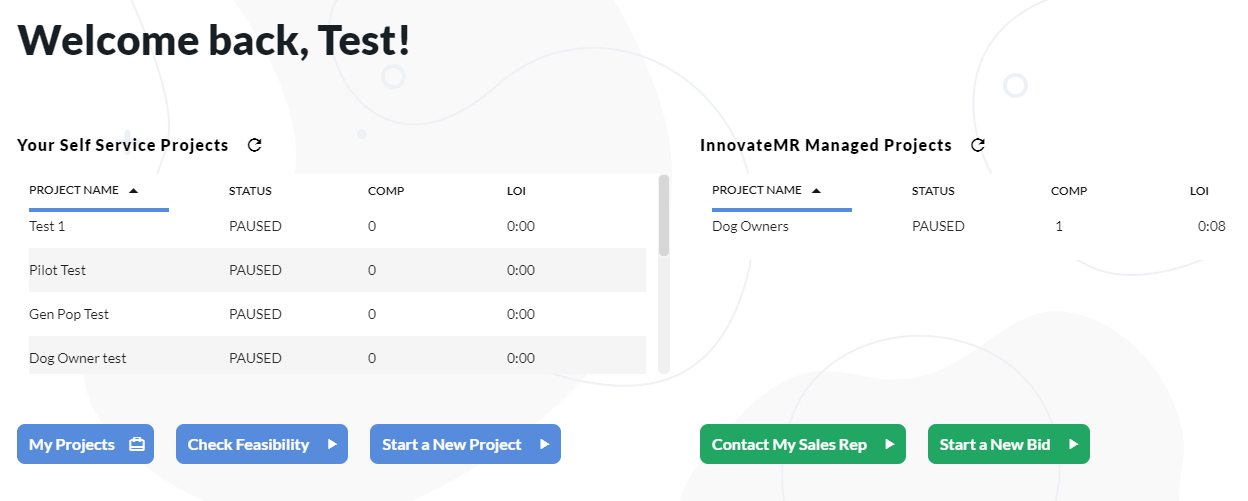
You can create a new job by clicking Jobs tab – “New +” icon or when you login fresh, click Start a New Project.
The job wizard will open. You simply need to add Job Name, Project Manager 1 (which will default to the current user), and the job category. Once entered, you can 'Create Job and Continue.'

Once you hit continue, you will land on the group setup wizard that will walk you through setting up a survey group.
Group definition: A "group" is a container for all the details and settings you need to target a specific audience. You can create as many groups within a single Job as you need to get the right sample blend.
Add a name for your survey, N size, IR, LOI, and your survey URL (if you have it at this time).
In order to test and launch your sampling project you must append Innovate's panelist token to the url. Do that with [%%token%%]
Once you save- you will go to the sampling tab.
Sampling tab: Add the sample target(s). On the right hand side, you will see Pricing and Feasibility based on the basic specs that are currently inputted. As you updated your target, your price and feasibility may change. You can adjust the slider to see the cost of sample at different Incidence Rates.
Add a max CPI to your sample to ensure you are never paying more than you want.
Targeting
- Demographic
- Basic demographic information of your target including age, gender etc.
- Geographic
- Segmented regional information of your target (if applicable)
- Profile Questions
- Additional targeting or screening to narrow the sample scope. You can search for keywords of the target you are looking for to find the appropriate question in the InnovateMR Platform library. If you cannot find a question you are looking for, you can add a custom question of your own. (See below)
- More Options
- Census Rep--quickly add census representative targeting and quotas by selection the attributes. InnovateMR Platform will add this for you and setup quotas.
- Import Targeting and Quotas--import targeting and quotas from a prior job within InnovateMR Platform.
Adding Custom Questions:
Create a question to add to your personal library in InnovateMR Platform. Enter your single or multi select question and add your answer choices.
When your question is created, it will be linked to your InnovateMR Platform account only and will be displayed whenever searched by its name in format like: “MY_CUSTOM_QUESTIONS_XXXX”
Quota Tab:
You can create a quota on any of the targeting questions you have added on the previous tab. You can also combine up to 3 targeting questions into a nested quota if desired. Each quota line works independently in order to best track your target. Quotas can be easily modified, closed or made soft/ hard on the Quotas tab.
Test Redirects:
InnovateMR Platform requires a Terminate to be tested, to enable launch phase. Though a Success can be tested as-well if required. Once tested, the tab turns green to confirm launch approval.

InnovateMR Platform being a tool that was built for our clients, asks for a confirmation before making a group live with a quick review of the targets & Survey URL.

You can always Pause a group any-time and modify (add or remove targets added) and InnovateMR Platform always makes sure to use traffic in best possible manner.
To review field progress the top-line gives details as-well as Group Stats tab gives out clear details including LOI, Incidence, hits as-well Demo based starts fall-out with last hit & last complete timestamp details and above all cost incurred till that time.